

The following guide is for educational purposes only. Sideloading APKs can expose your device to security risks and may violate TikTok’s Terms of Service. You proceed at your own risk. We are not liable for any damages, data loss, or security breaches that may occur.
– calm in times of crisis –
Step 1: Understand Sideloading Risks
- Before proceeding, familiarize yourself with the risks of sideloading:
- Security Risks: APKs from untrusted sources can contain malware or spyware.
- Void Warranty: Some manufacturers void warranties if sideloading causes software issues.
- App Updates: Apps sideloaded via APKs don’t receive automatic update
Step 2: Enable Installation from Unknown Sources
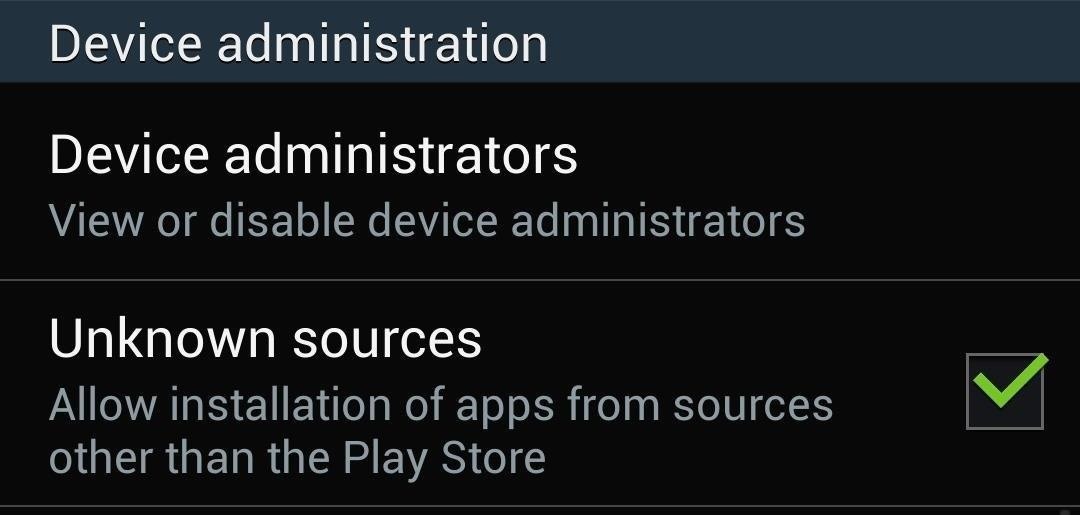
To install an APK, you need to enable the installation of apps from unknown sources.
- Open Settings:
- Go to your Android device’s Settings menu.
- Navigate to Security:
- Scroll down and select Security or Privacy (depending on your device).
- Allow Unknown Sources:
- Toggle the switch next to Install unknown apps or Unknown sources.
- Confirm the prompt warning about potential risks.
Diagram:
Settings > Security > Unknown Sources > [Toggle ON]
Note: On newer Android versions (Android 8.0 and above), you’ll need to enable this setting for specific apps like Chrome or your file manager.
Step 3: Download the TikTok APK
- Open a Trusted Source:
- Search for TikTok:
- In the search bar, type “TikTok” and look for the latest official version.
- Download the APK:
- Click the Download button and wait for the APK file to be saved to your device.
Tips:
- Check the APK’s details (version number, file size, and reviews) to ensure authenticity.
- Avoid modified or unofficial versions.
Diagram:
Browser > APK Source > Search TikTok > Download APK
Step 4: Install the TikTok APK
- Locate the Downloaded APK:
- Open your file manager app or go to your browser’s Downloads section.
- Find the TikTok APK file (e.g.,
tiktok_x.x.x.apk).
- Start Installation:
- Tap the APK file. You’ll see a prompt asking for confirmation.
- Click Install to begin the process.
- Grant Permissions:
- If prompted, grant any necessary permissions (e.g., storage access).
- Complete Installation:
- Once the installation finishes, you’ll see an option to Open the app or Done.
Diagram:
File Manager > Downloads > TikTok APK > [Install]
Step 5: Verify the App
To ensure the app is functioning correctly:
- Launch TikTok:
- Open the app from your app drawer.
- Sign In:
- Log in with your TikTok credentials or create a new account.
- Test Features:
- Verify that videos load properly, and all features work as expected.
If Issues Arise:
- Double-check that you’ve downloaded a compatible APK version for your device.
- Clear the app cache by going to Settings > Apps > TikTok > Storage > Clear Cache.
Step 6: Optional – Disable Unknown Sources
For security, it’s a good idea to disable the “Unknown Sources” setting after installing TikTok:
- Open Settings:
- Return to Settings > Security.
- Disable Unknown Sources:
- Toggle off the option for Unknown Sources.
Diagram:
Settings > Security > Unknown Sources > [Toggle OFF]
FAQs
1. Is it safe to sideload TikTok via APK?
Sideloading from trusted sources can be relatively safe. However, downloading from unverified sites can expose your device to malware or data theft.
2. Will I get TikTok updates automatically?
No. You’ll need to manually download and install the updated APK versions.
3. Why is TikTok not available on my app store?
TikTok may be restricted in your region due to local laws or regulations.
4. Can I delete the APK file after installation?
Yes. Once TikTok is installed, you can delete the APK file to free up storage.
Subscribe
We wont spam or sell your data, We just like knowing who we can send links to view free PPV events, Wait am I allowed to say that?
 Sudo Grizzly Gents
Leave a comment